Getting started
How the ChordWise screen is laid out, what every button in the top bar does, and the one habit that unlocks most options: press and hold.
The guided tour
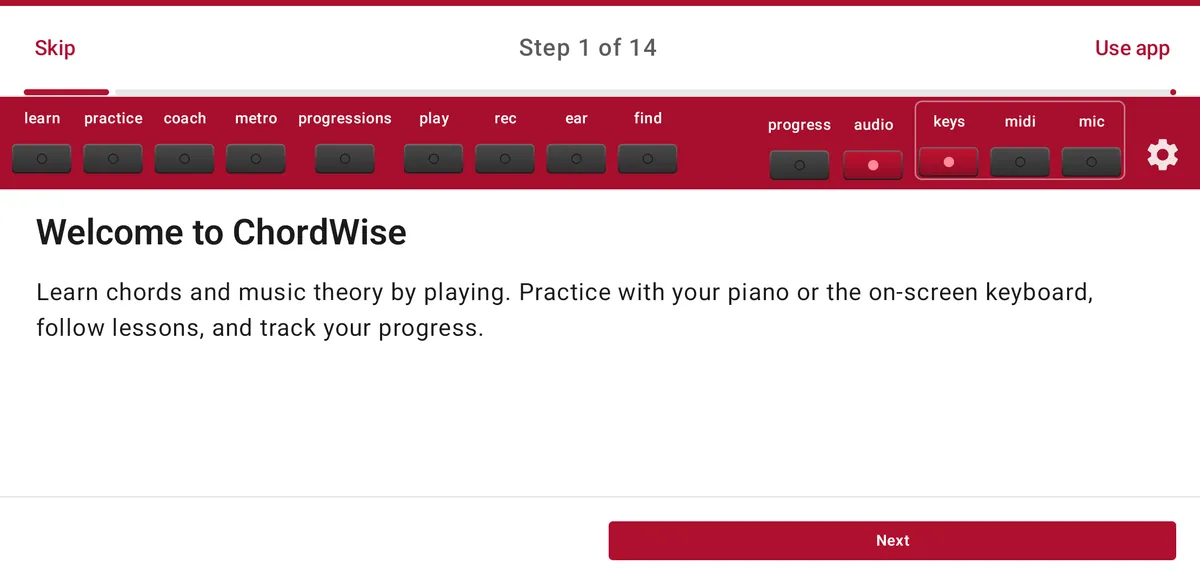
The first time you open ChordWise it offers a short walkthrough. It shows the screen layout, the three ways to play, and the main features one step at a time. You can skip it and start playing straight away.
You can take the tour again at any time: open Settings (the gear at the top right) and choose Take the guided app tour.
The screen at a glance
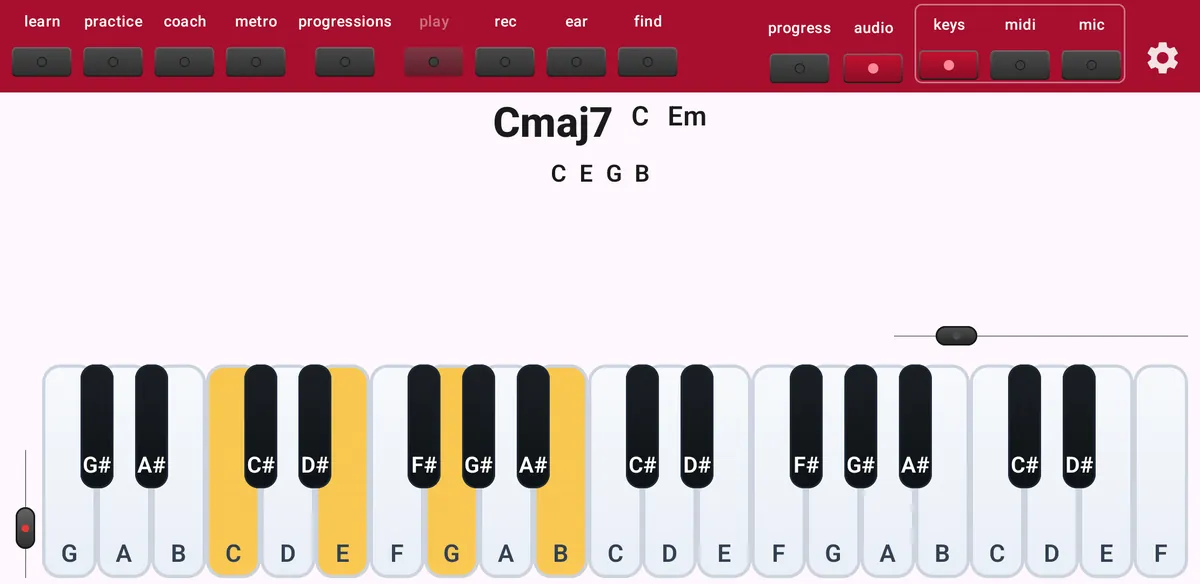
ChordWise always uses the same three bands, held sideways:
- Top bar
- Buttons for every feature. A lit lamp means the feature is on.
- Middle
- The chord you are playing, the instruction for an exercise, or the panel you opened (lessons, Practice Builder, progress and so on).
- Keyboard
- The on-screen piano. It shows the keys you press and, during exercises, which keys to play next. The slider on the left changes the keyboard height; the slider above the right side changes how many octaves you see.
The top bar

From left to right:
- learn
- Lessons: step-by-step theory you play along with.
- practice
- Practice Builder: make your own chord, scale, degree or note drills.
- coach
- Maestro Coach: a practice path that adapts to you.
- sheet
- Lead sheets: import a chart and play along chord by chord.
- metro
- Metronome: tap to start or stop, hold for tempo and options.
- progressions
- Next-chord suggestions in a key and style.
- play / rec
- Record what you play and play it back later.
- ear
- Ear training: name the chord type you hear.
- find
- Look up any chord and see it on the keyboard.
- progress
- Practice statistics, goals and practice ideas.
- audio
- Piano sound on or off.
- keys / midi / mic
- How you play: on-screen keys, a MIDI keyboard, or a real piano through the microphone.
- Gear
- Settings.
Tap or press and hold
A short tap switches a feature on or off. Press and hold a button to open its options: keys, midi, mic, metro, progressions, rec, play and coach all have their own settings panel.
Sliders work the same everywhere: drag the knob, or tap it to jump back to the default value.
Not using some features? In Settings, under Toolbar buttons, you can hide the metronome, progressions, play, record, ear training and find buttons.