Play and see every chord
Play anything and ChordWise names it immediately: the chord, its notes, its inversion and other names for the same notes.
What you see when you play
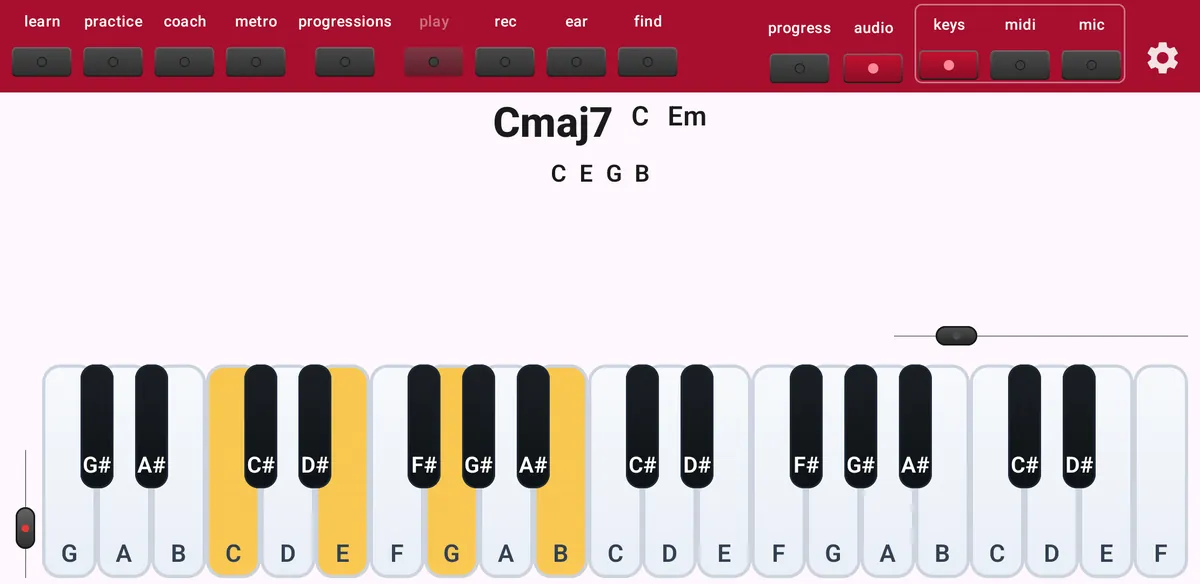
As soon as you press keys, the middle of the screen shows the chord name in large letters, with the notes underneath. Next to the main name you see alternative names when the same notes can be read in more than one way, for example Cmaj7 and Em/C.
ChordWise recognises triads, sevenths, sus chords, sixths, added-note chords, extensions up to the 13th, inversions and slash chords. Single notes are named too.
- Inversion indicators
- Show whether you play the chord in root position or in an inversion. Turn them on or off in Settings.
- Alternative chord names
- The other ways to name the same notes. Turn them on or off in Settings.
- Why these chords?
- Hold a chord for five seconds and a Why these chords? button appears. It shows which readings fit the notes and why the first one is the most likely.
The on-screen keyboard
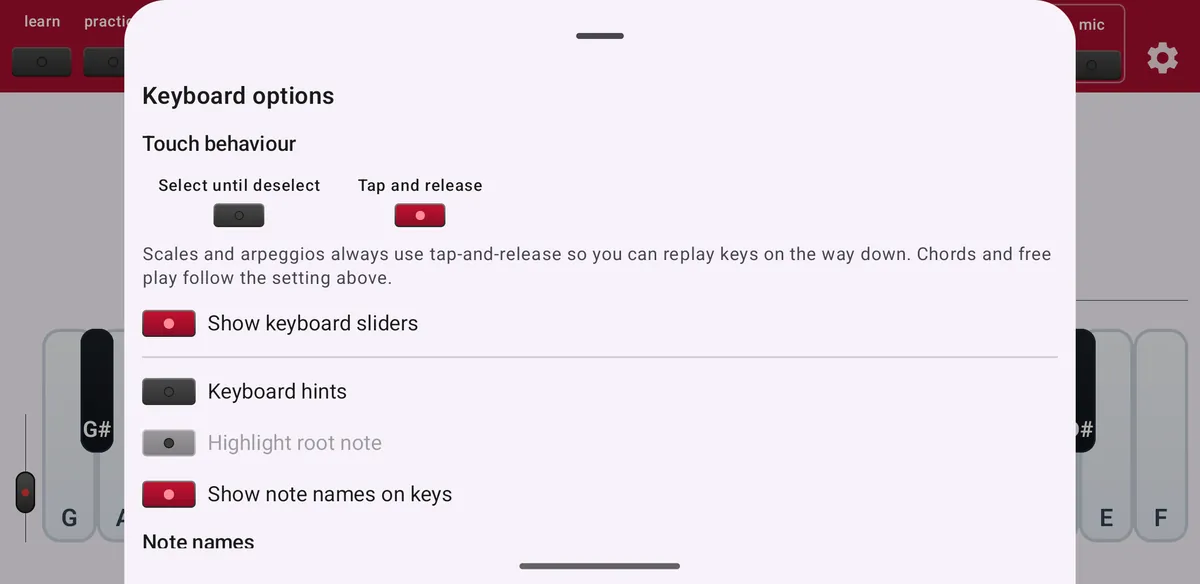
Press and hold keys in the top bar to open the keyboard options.
- Touch behaviour
- Tap and release plays a key only while you touch it. Select until deselect keeps keys down until you tap them again, so you can build a chord one finger at a time. Scales and arpeggios always use tap and release.
- Show keyboard sliders
- Shows the sliders for keyboard height and width.
- Keyboard hints
- Highlights the keys to play during exercises, with optional numbers for the order and a marked root note.
- Show note names on keys
- Prints C, D, E and so on on the keys.
- Note names
- Choose sharps (C♯) or flats (D♭) for the black keys.
Use the Clear button at the top right to release all selected keys.
Piano sound
Tap audio to hear the keys you play. The first time, ChordWise downloads about 38 MB of piano samples once; after that the sound starts instantly, also offline. With a MIDI keyboard you will usually leave audio off and listen to your own instrument.
Free-play tips
While you play freely, ChordWise sometimes suggests a next step: practising the chord you keep repeating, adding sevenths when your triads are solid, or a lesson that covers what you are playing. Use the menu on a tip to hide that tip or all tips. You can also switch tips off in Settings.
Free or Maestro
Free play is included for 15 minutes a day. With Maestro you can play as long as you like.